
User Guide to Remote Experiments
Many SNS and HFIR instruments provide the possibility of remote experiment capabilities allowing users to remotely conduct experiments and produce data through computer access.
In most cases, onsite participation is required by two or more experiment team members to conduct a safe, effective experiment. Remote instrument capabilities can be useful when key members of the team are unable to participate onsite during the experiment. Remote instrument capabilities can also be helpful when users are onsite but not directly at the instrument. Talk to the instrument team about whether your experiment is suitable for remote access mode.
Remote Experiments Step by Step
Before Your Experiment
- Submit a proposal.
- Confirm your proposal in IPTS as soon as possible after approval. You will need to specify dates you cannot participate and experiment samples, containers, and shipping address. Go to “My Actions” on your IPTS home page.
- Obtain ORNL access approval. Users may be required to have an active ORNL access request, even if you are participating remotely. Access requests can take up to 25 business days for processing for some users. Respond promptly to User Office emails regarding access to avoid delays. Contact the User Assistants with questions.
- Communicate with the instrument team during scheduling. Be sure to verify your plans for remote participation with instrument team. Not all experiments are suitable for remote participation. Instrument team contacts can be found here.
- Confirm your participation. Once your experiment is scheduled, you will receive an automated email from IPTS with a link to indicate how you will participate.
- Select “Remote Instrument Control” if you do not intend to come onsite but will remotely access instrument controls. This option only appears if enabled by the instrument team for your experiment.
- Select "Remote Participant" if you are unable to attend onsite but plan to provide real-time coordination with the instrument team during the experiment. Note: the Remote Participation option does not provide access to remote instrument controls.
- If you intend to come onsite, select "Onsite" as your participation type. Onsite users may be granted access to remove instrument controls if needed during the course of their experiment. For more detail, see Accessing Remote Instrument Control While Onsite section below.
- Once you have indicated your intent to participate, the User Office will evaluate your readiness for access and training. Respond promptly to User Office messages to avoid delays.
- Join the ORNL Neutron Sciences Workspace for Slack.The instrument team may use Slack to coordinate your experiment. A private Slack channel is automatically created for your experiment once it has been scheduled. Once the Slack channel has been created, all experiment team members who have previously joined the ORNL Neutron Sciences Workspace are automatically added. The local contact for your experiment may also be added. To join the workspace, log into the Slack ORNL Neutron Sciences Workspace with your ORNL user ID and password.
- Review Training Videos and Experiment Safety Sheet in IPTS. Remote Instrument Control participants will see actions for Acknowledge Remote Instrument Training Videos and Acknowledge Remote Experiment Safety Sheet on the IPTS home screen. These actions appear only after the experiment has been scheduled and participation type set to indicate Remote Instrument Control. You will be unable to access instrument controls if you have not completed these steps. For troubleshooting, contact the User Office. (Note: remote training and remote ESS steps apply to Remote Instrument Control but not Remote Participant participation type.)
- Ship Your Samples. Samples and equipment are expected to arrive seven business days before the scheduled beam time to avoid any delays or loss of beam time. Refer to the shipping guide for details on shipping samples for your experiment. Shipping checklists are available for domestic and international shipments.
Important Sample documents:
- When adding samples in IPTS include all safety data sheets (SDS) for the sample(s) or their components and ensure all sample disposition information is complete (e.g., return mailing address).
- Complete the sample loading sheet at the time of shipment (accessible from the proposal summary page). This allows the specific sample information (e.g. density, height, mass) to be applied to data collection fields.
- When shipping samples, you must include a packing list or have all samples clearly labeled. This is critical to sample processing and acceptance.
During Your Experiment
Accessing instrument controls – Instructions for accessing the instrument controls during your experiment are covered in the training videos in IPTS (login required). Fuller details and screen images are provided in training videos.
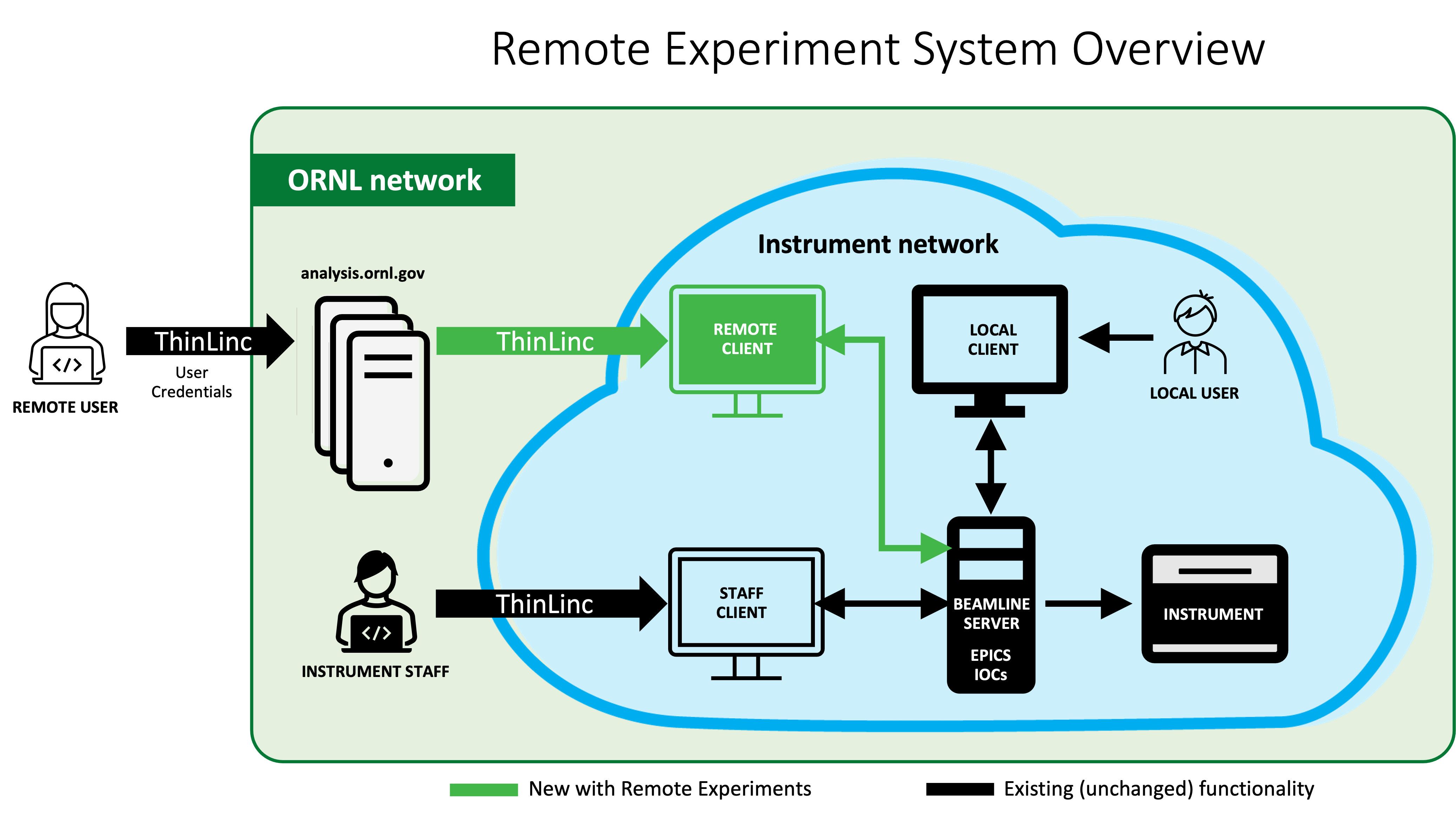
- Launch Analysis Cluster session and log in with your ORNL credentials.
- Accept the privacy statement.
- Once logged in, you will need to remotely access your proposal instrument (Applications > Remote Experiments > Instrument).
- This will launch ThinLinc Client where you will be prompted to enter your credentials.
- Once connected to the instrument, you will need to start the Control System Studio software (Applications > DAS Tools > CSS).
- CSS will open with welcome screen which you can dismiss.
- To access CSS user screen (File > Top Resources > User).
- If needed, F8 key will allow you to adjust to full screen view.
Getting Help With Your Experiment
Contact staff members with questions or issues
- Contact the User Office for troubleshooting with your login, IPTS, training videos, or Slack. Email is neutronusers@ornl.gov.
- Contact the sample management staff for sample and shipping related issues. Email is neutronlabs@ornl.gov.
- For urgent issues during your experiment, contact your local contact or the Instrument Hall Coordinators (865-241-4432).
Common Troubleshooting for Remote Instrument Control
If you are unable to access remote instrument controls for the instrument, try checking the following:
Did you select “Remote Instrument Control” when confirming your participation?
If your participation type is not set for Remote Instrument Control, you will not be able to connect to controls from offsite. Check with your user assistant.
Is it time for the scheduled experiment to start?
Remote instrument control is not allowed until the scheduled experiment start date/time.
Has the instrument team officially started the experiment in CSS?
Remote instrument control is not allowed until the instrument team has officially started the experiment in CSS.
Can you see the proposal listed in My Proposals when logged in to IPTS?
If you do not find the proposal listed in My Proposals in IPTS, you may be listed on the proposal team with a different account. Contact the neutronusers@ornl.gov for help.
Has the instrument team enabled the experiment for remote control in scheduling?
Instrument team must set the experiment to enable possibility of remote instrument control. Settings on both proposal and in CSS must be enabled.
Have you watched and acknowledged the training videos in IPTS?
You should see an action item on your IPTS home screen. Acknowledgement state of each video will be indicated.
Have you reviewed and acknowledged the Experiment Safety Sheet in IPTS?
You will have an action on your IPTS home screen to review and and acknowledge the Remote ESS on your IPTS home screen. This step does not appear until safety has approved the ESS and instrument team has signed. The remote ESS action will not be available earlier than 7 days before the experiment start date.
Accessing Remote Instrument Control While Onsite
Experiment team members who are participating onsite are often able to access remote instrument control as a convenience during their experiment. Remote instrument control must be enabled in CSS for the user and the user must have signed the Experiment Safety Sheet as an onsite participant.